Use Your Node in the Hub
The Orbinum Hub talks to Orbinum's public RPC nodes by default. You can point it at your own node instead: your balance, staking and shielded pool reads, and the transactions you submit, then go through a node you run.
The Hub only accepts a node that runs the same release as Orbinum's own nodes: the same chain, the same runtime and the same node build. A node on an older release is refused, and so is one that has not caught up with the latest runtime upgrade. Update your node as soon as a new release ships (see Updates & Backups).
What your node needs
The Hub runs in the browser, so the browser must be able to reach your node:
| Requirement | Why |
|---|---|
TLS: wss:// and https:// | The Hub refuses plain ws:// and http:// endpoints |
| CORS open to the Hub | Without it the browser blocks every request |
| Synced | A node still syncing reports an older runtime and is refused |
| Latest release | See the caution above |
A Public RPC Node set up with node-deploy meets all of them:
Caddy terminates TLS and sets the CORS headers.
You can set one endpoint or both:
| Field | URL | Used for |
|---|---|---|
| Substrate WSS | wss://<your-domain> | Chain reads, staking, the shielded pool, submitting transactions |
| EVM RPC | https://<your-domain> | EVM balances, gas estimates, EVM receipts |
A field left empty keeps Orbinum's default endpoint.
Connect
- Open Networks in the Hub: app.orbinum.network/networks.
- Pick the network in the top bar. The card applies to the network selected there.
- In Your own node, enter your Substrate WSS URL, your EVM RPC URL, or both.
- Click Check and connect.
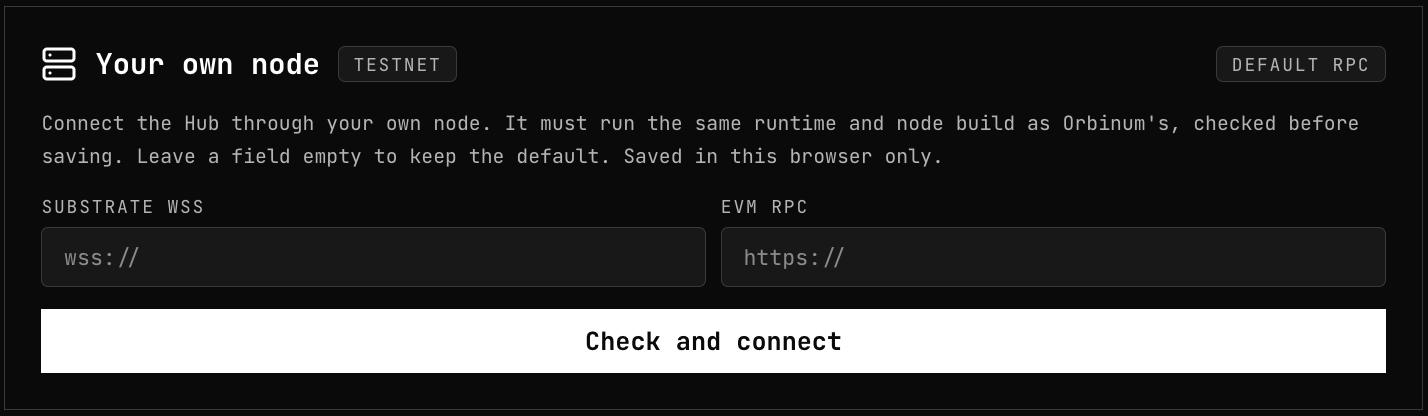
Before saving, the Hub compares your node with Orbinum's. When they match, it reconnects through your node right away. You don't need to reload the page or unlock again. The badge at the top right of the card changes from Default RPC to In use.
The setting is saved in this browser only, per network. Another browser or device keeps using the default until you set it there too.
If it is refused
| Message | What to do |
|---|---|
| Your RPC doesn't run the same version as Orbinum's. | Update your node to the latest release and let it finish syncing. Check that the URL points at an Orbinum node of the network selected in the top bar |
| Could not reach your RPC. | Check the URL, TLS and CORS. Try it from the browser's console or with curl |
| Could not reach Orbinum's RPC to compare with yours. | The Hub cannot reach Orbinum's nodes to compare. Try again later |
| The Substrate URL must start with wss:// / The EVM RPC URL must start with https:// | Use the TLS URL of your endpoint |
After an upgrade
The check isn't a one-off. The Hub compares your node with Orbinum's again:
- each time it starts, before its first read;
- on every connection to your node, including each reconnect after you restart or upgrade it. Nothing is read from or sent through the new connection until the check passes;
- every minute, which catches a release Orbinum ships while the Hub is open.
As soon as they differ, the Hub drops your node and goes back to the default RPC:
Your RPC no longer runs the same version as Orbinum's. The Hub is back on the default RPC.
Update your node to the new release, let it sync, and connect it again from Networks. If your node or Orbinum's can't be reached during a check, the Hub keeps the setting as it is and tries again at the next check.
To switch back to the default yourself, click Use default in the same card.